



[ad_1]
Many companies are happy to adorn their high-end mice with more buttons than you might think possible. Asus takes a different tack with the creativity-focused ProArt Mouse MD300, equipping it with two scroll wheels—one on top and one on the side—as well as a third, exclusive rotating control dubbed the Asus Dial. Some productivity mice let you click a bunch of buttons; the ProArt MD300 lets you spin a wonderment of wheels. It’s a nifty pick for folks such as graphics and video creators, but the mouse carries a steep $180 MSRP. Also, it ignores many potential customers by neglecting a big bastion of creative professionals: Mac users. If you’re on Windows, though, and spend lots of time in Adobe software, it could make your fingers very happy.
A Mouse With a Major Rotation Scheme
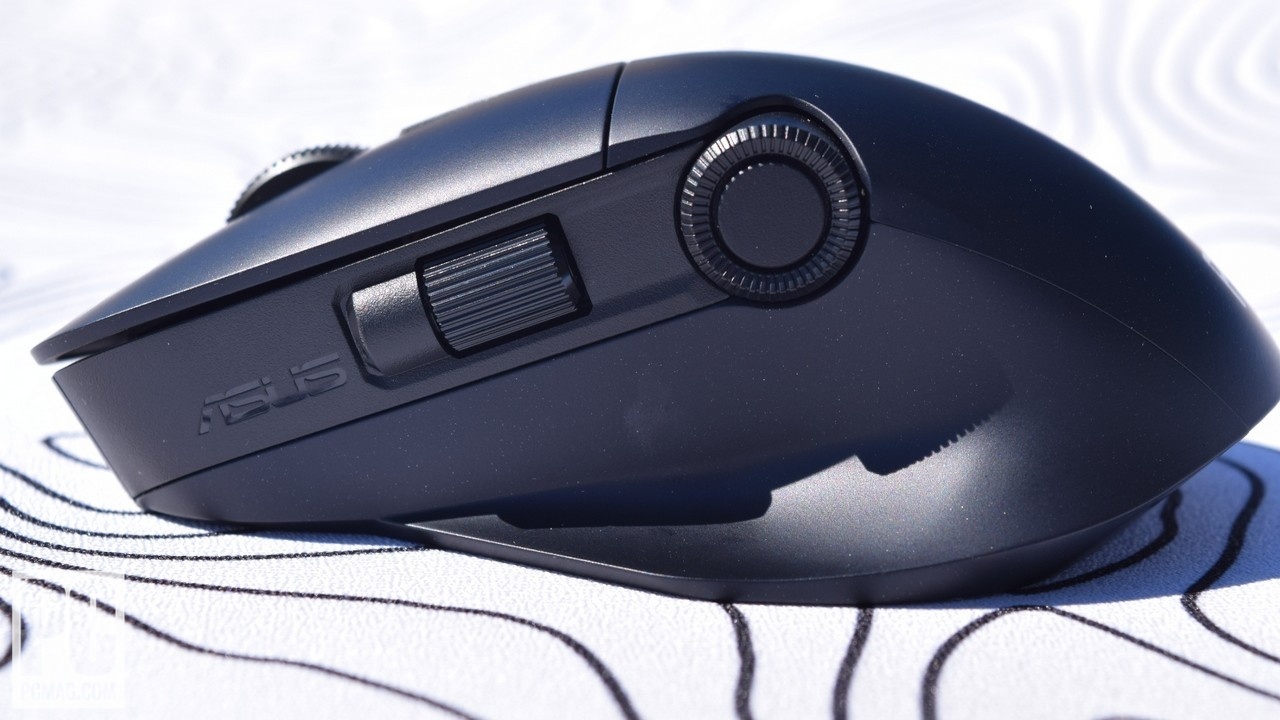
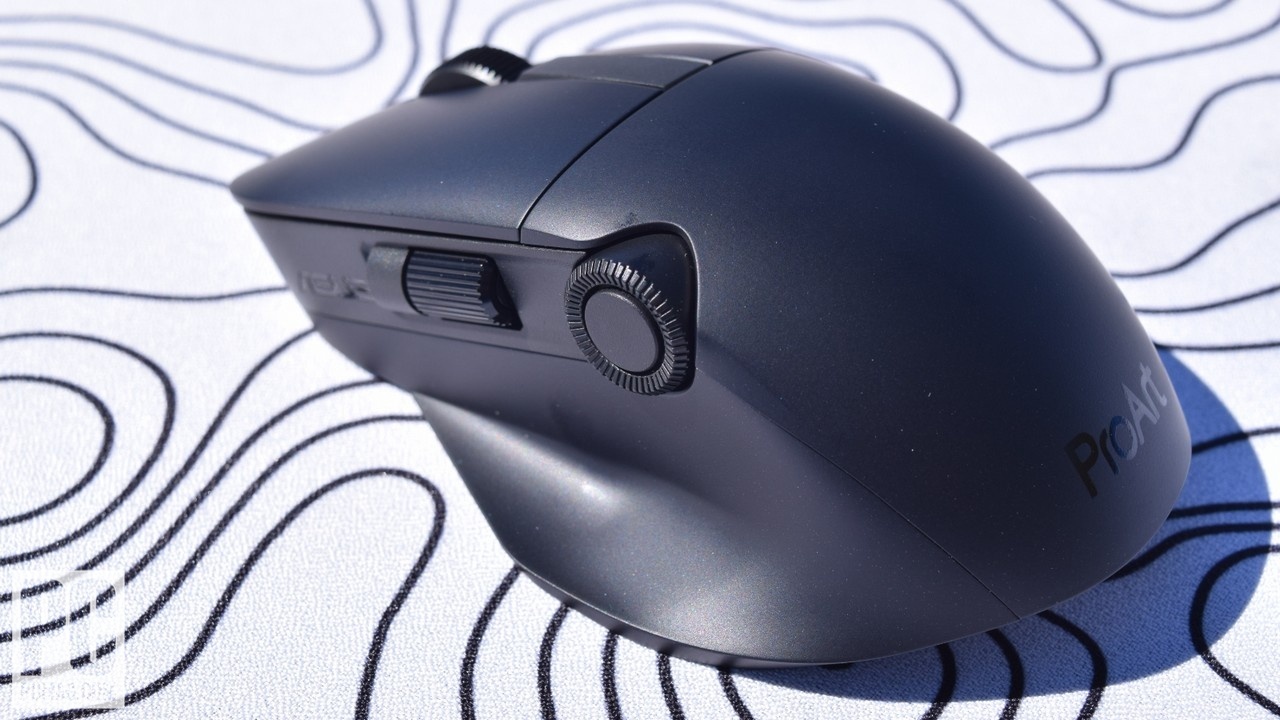
Look at it from the right side, and the ProArt MD300 is a fairly standard right-handed mouse with an all-black color scheme. (The shell, alas, excels at collecting smudges in everyday use.) You’ll find four buttons on top: the primary left and right buttons, a clickable scroll wheel, and an oversize button beneath the latter. The left side is its “good side”: There, you’ll find an extra (cylindrical) scroll wheel and the Asus Dial. These side controls also feature buttons that can be pressed between swipes and swivels.
(Photo: Nathaniel Mott)
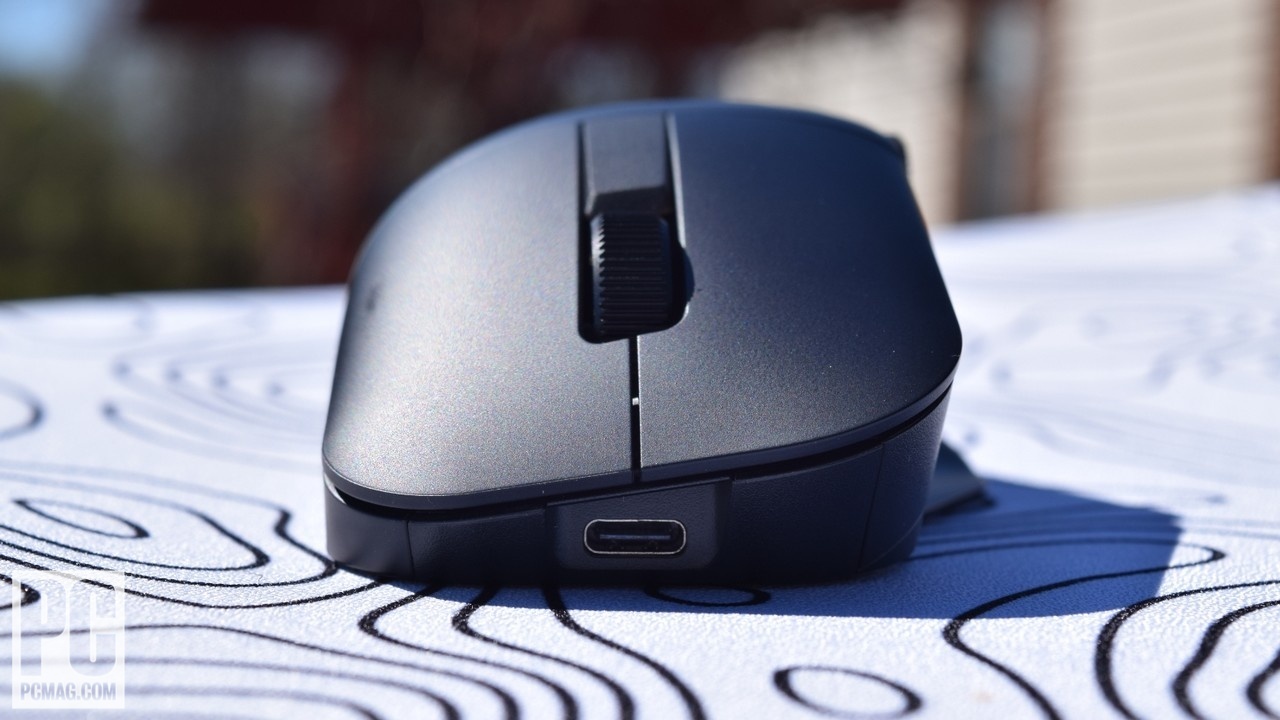
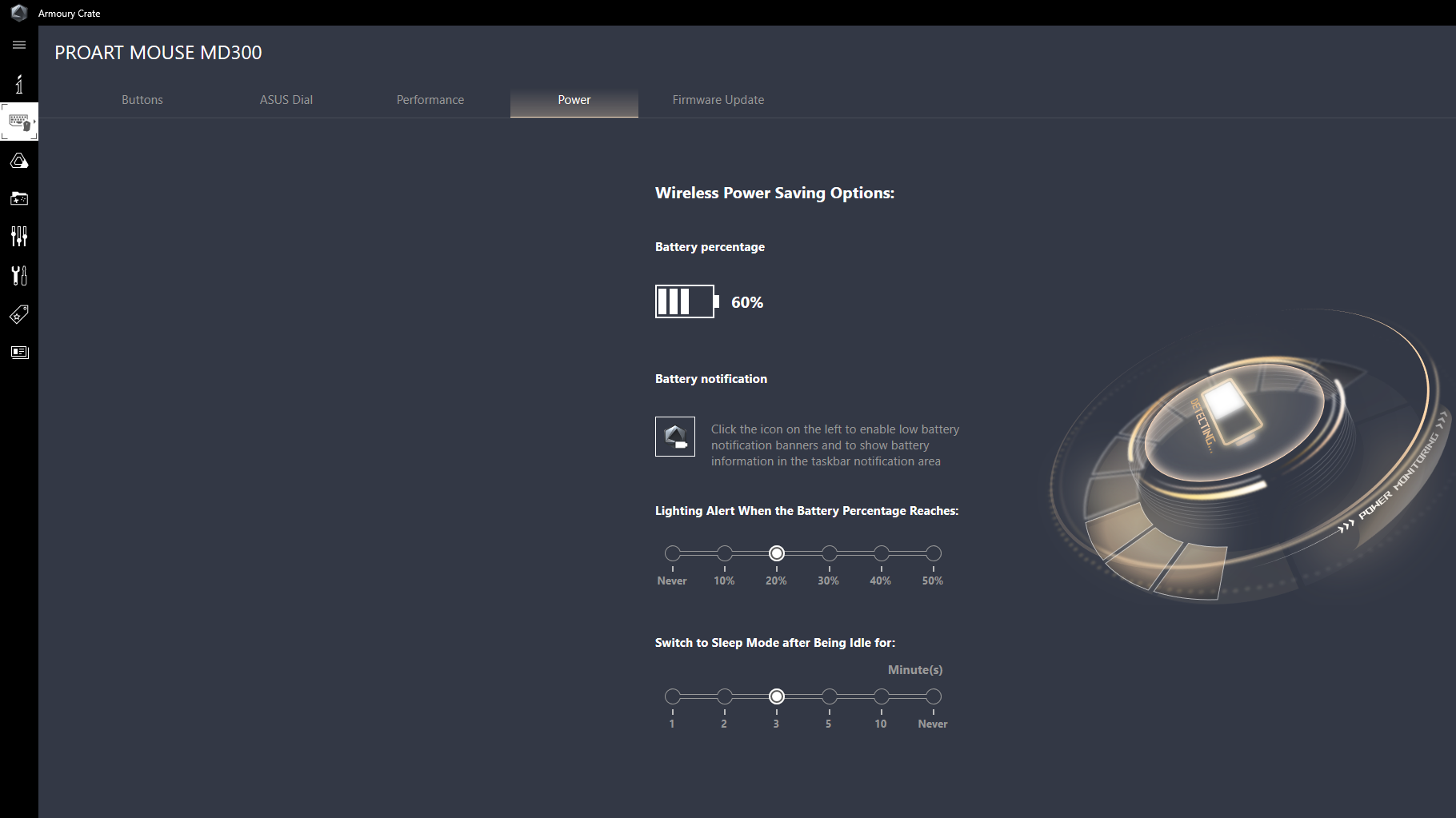
The wireless mouse works with both Bluetooth and a 2.4GHz wireless USB dongle, and it can be paired with up to three devices. Asus rates its battery life at up to 150 days on a full charge; I wasn’t able to exercise the mouse for that long before this review’s deadline, but it’s lasted for several weeks without stopping. You can juice it back up quick, too: The company says a single minute of charge will suffice for three hours of heavy or eight hours of light use.
(Photo: Nathaniel Mott)
That heavy use isn’t likely to include gaming; the MD300’s optical sensor isn’t nearly as precise as those of elite gaming mice, peaking at 4,200dpi, and its lack of traditional side buttons can be a hindrance in some titles. The mouse weighs in at 3.8 ounces (109 grams), as well, which is double the weight of the flagship Razer Viper V2 Pro. But that doesn’t come as a surprise. It’s called the ProArt MD300, not the ProGame MD300.
Similar Products

Logitech MX Master 3 Wireless Mouse
Check Stock
(Opens in a new window)
Read Our Logitech MX Master 3 Wireless Mouse Review

Microsoft Bluetooth Ergonomic Wireless Mouse
See It
(Opens in a new window)
Read Our Microsoft Bluetooth Ergonomic Wireless Mouse Review

Microsoft Adaptive Mouse
See It
(Opens in a new window)
Read Our Microsoft Adaptive Mouse Review
Evoluent VerticalMouse C Right Wired
See It
(Opens in a new window)
Read Our Evoluent VerticalMouse C Right Wired Review
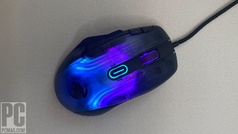
Roccat Kone XP
See It
(Opens in a new window)
Read Our Roccat Kone XP Review
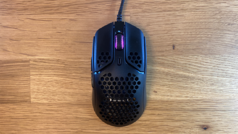
HyperX Pulsefire Haste Gaming Mouse
See It
(Opens in a new window)
Read Our HyperX Pulsefire Haste Gaming Mouse Review
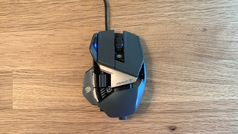
Mad Catz R.A.T. 8+ Gaming Mouse
See It
(Opens in a new window)
Read Our Mad Catz R.A.T. 8+ Gaming Mouse Review
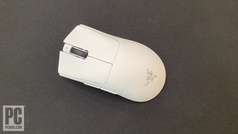
Razer DeathAdder V3 Pro
See It
(Opens in a new window)
Read Our Razer DeathAdder V3 Pro Review

Razer Pro Click Mini
See It
(Opens in a new window)
Read Our Razer Pro Click Mini Review
Microsoft Surface Mobile Mouse
See It
(Opens in a new window)
Read Our Microsoft Surface Mobile Mouse Review
Razer Pro Click Wireless Mouse
See It
(Opens in a new window)
Read Our Razer Pro Click Wireless Mouse Review
Logitech Ergo M575
See It
(Opens in a new window)
Read Our Logitech Ergo M575 Review
The Deets on the Dial
That brings me to the Asus Dial. The company describes it as a tool for making fine-tuned adjustments to various settings in creative apps like Adobe Photoshop. On some devices (more on that in a moment), it can also invoke a radial menu that can manage a variety of settings. It can work as a scroll wheel, too, although the Dial’s positioning makes the side-mounted scroll “cylinder” a bit more comfortable to use.
My primary issue with the Asus Dial is that it only reaches its true potential on Windows, because that’s the only operating system supported by Asus’ Armoury Crate software, which manages all of the company’s peripherals and components. Creative professionals using Macs, and there are many, can’t take full advantage of the Asus Dial. This seems like an oversight given the ProArt’s positioning.
(Photo: Nathaniel Mott)
For creative pros using Windows, the Asus Dial’s primary function changes with the program you’re using, with emphasis on the Adobe Creative Suite. In Lightroom Classic, for example, the Dial manages exposure; in Premiere Pro, it zooms in and out of the timeline; and in Photoshop, it’s used to zoom in and out of specific layers.
Windows users who don’t spend their day in Adobe’s software will be greeted by the Asus Dial UI. By default, this element merely offers volume controls, but it can be customized to allow the mouse’s spinners to adjust display brightness (only on a laptop, not a desktop), switch among apps or virtual desktops, or behave like a traditional scroll wheel.
This is an interesting concept, but it stumbles to an extent in the execution. There are three intersecting problems with the Asus Dial’s onscreen UI: its size, the lack of a way to dismiss the UI after it appears on screen, and how easy it is to invoke accidentally. These glitches culminated in a frequent intrusion on valuable screen space by a volume dial (which had the added effect of deafening me the next time I launched a game).
The physical aspects of the Asus Dial, though, are easy to like. It offers enough resistance to enable precise adjustments, but not so much that rotating it feels cumbersome. The built-in button also has a satisfying click. As I said, I didn’t find it as comfortable to use in scroll-wheel mode as the actual scroll cylinder next to it, but that will vary based on your grip and hand size. Users with smaller hands will probably have a better time with the Asus Dial than the scroll wheel.
Connectivity and Software
Asus deserves props for putting large, high-quality feet on a non-gaming mouse. Some productivity mice have itty-bitty feet that wear out after a while; that doesn’t seem to be the case with the ProArt Mouse MD300.
I noticed that the mouse’s Bluetooth connectivity was a bit finicky with my MacBook Air running macOS Monterey; the device took some time to pair and even then would occasionally disconnect and force me to pair it again. Each time that happened, I saw the ProArt listed twice in my Bluetooth menu, so I’m not sure what the problem was (not that I’d recommend the mouse to Mac users anyway, given its software limitations).
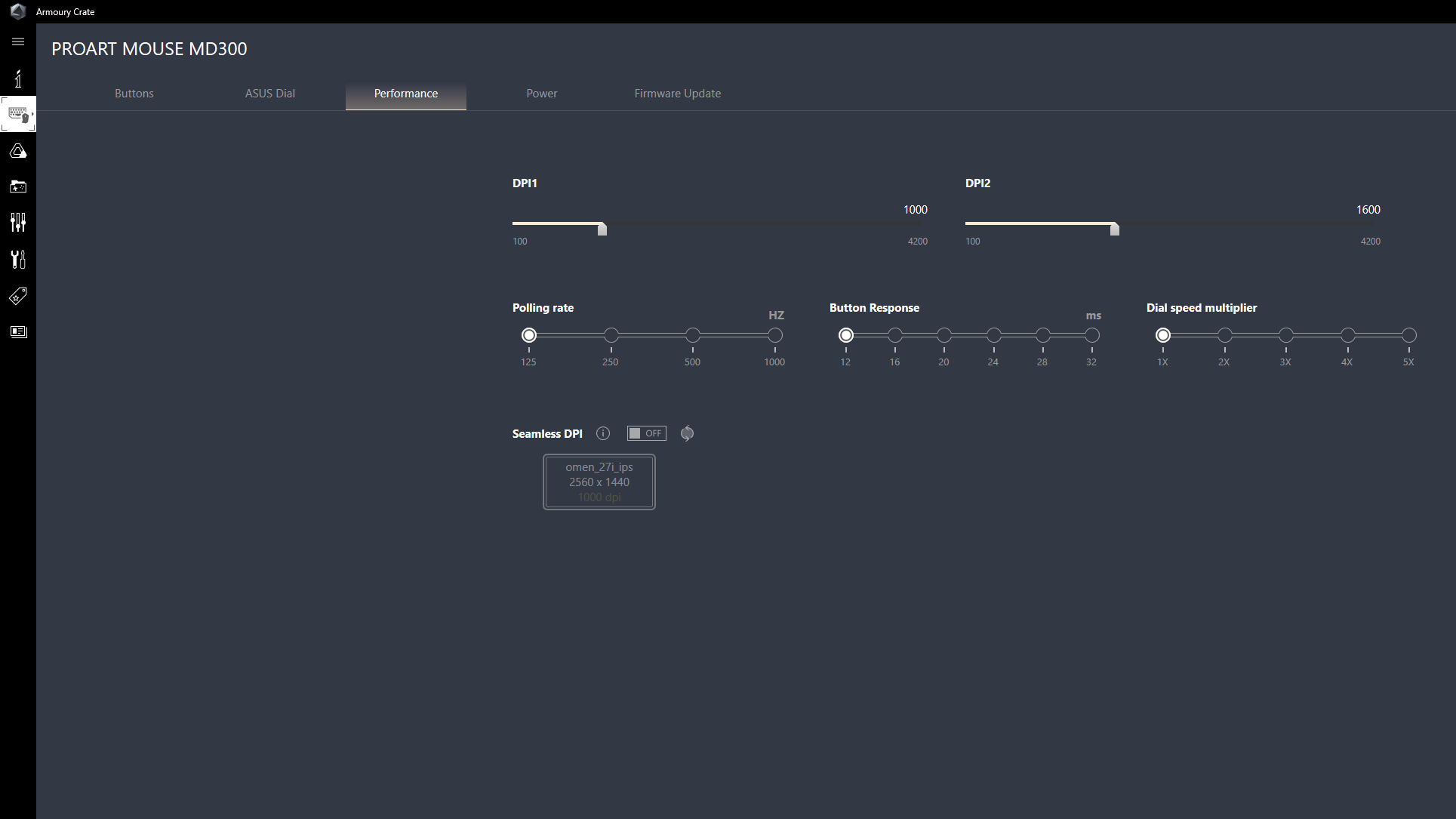
As Windows software goes, Armoury Crate is fine. Some users who own multiple Asus products governed by Armoury Crate might be bothered by having to select the specific device to tweak each time they want to change a setting, but that’s arguably less bothersome than having to install and keep track of multiple apps.
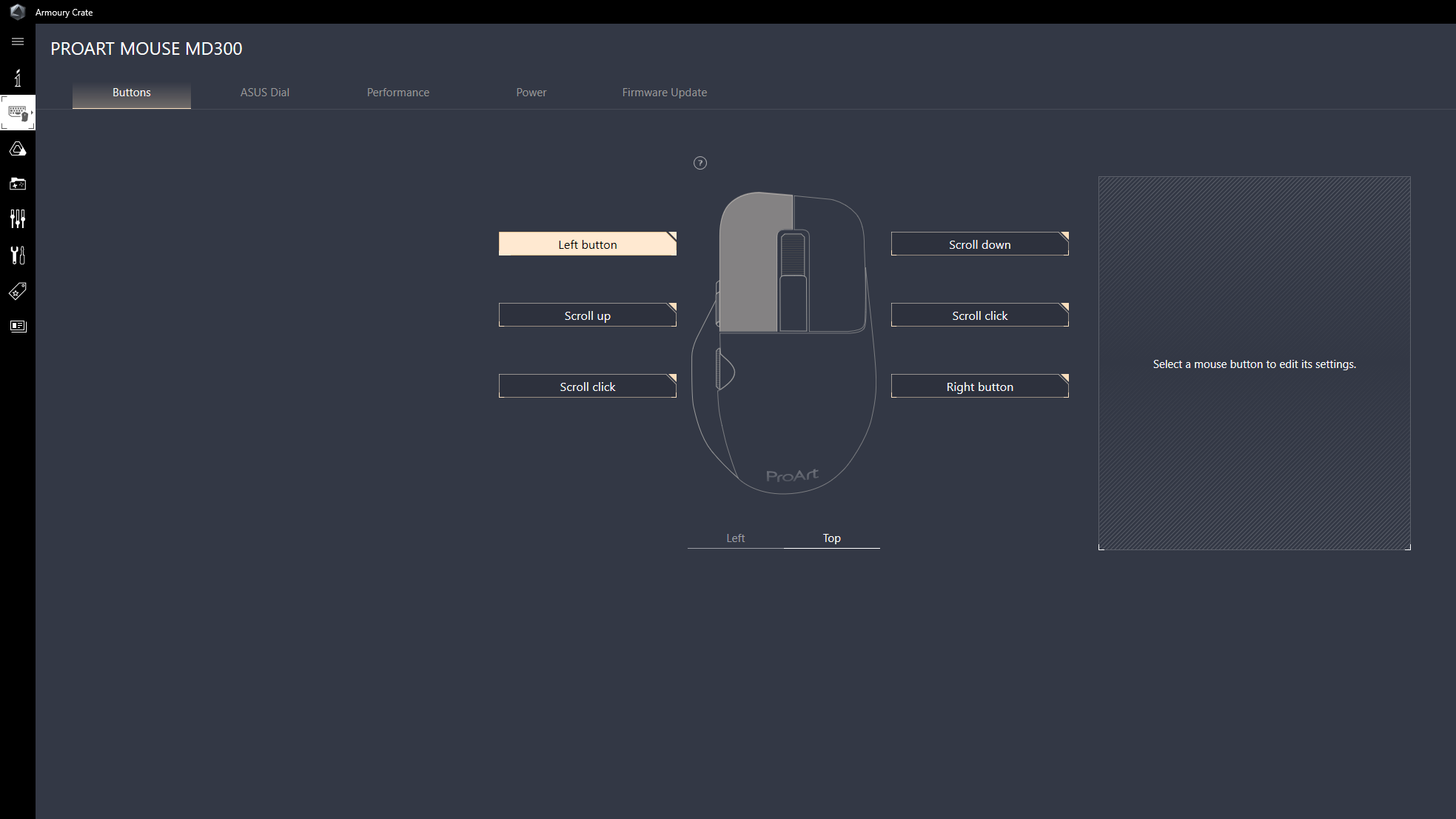

Either way, Armoury Crate offers all the features you’d expect, from the ability to update the mouse’s firmware and adjust performance settings to handling button reassignments and customizing the Asus Dial. Again, it’s a shame the app’s exclusive to Windows.
The Verdict: A Flexible Mouse, But Just for a Select Few
So for whom does the ProArt Mouse MD300 make sense? If we assume Mac users will be better off buying a different mouse because Armoury Crate isn’t available for macOS, that leaves Windows creative pros who spend most of their time in Adobe Creative Suite, don’t do much gaming, or just prefer rotating a controller to clicking on it.
Cost is another important factor. At the time we posted this, the MD300 wasn’t yet available in the US from Asus’ online store or from partner retailers, but its announced list price of $180 is…very much not cheap. We’ll have to see how the actual street prices shake out. As is, the ProArt is less expensive than some creative tools (or the annual cost of an Adobe subscription), but considerably more than many other mice that do most of what it does. It’s all about whether you can leverage that Dial.
We can see the appeal of the Asus Dial UI, but with its current limitations—both in features and compatibility—it’s not enough to sell us on the ProArt MD300. (That is, unless you spend your days in Creative Suite, in which case it could be your future new best friend.) This is a solid mouse with potential, but it won’t be able to justify that price for most folks.
[ad_2]
Source link : https://www.pcmag.com/reviews/asus-proart-mouse-md300



